
80s AI photo generator
Turn a clear photo into a 1980s studio portrait. Start with a yearbook or family-album prompt, adjust the details, and generate a photo edit in the tool below.
Vikas Editor studio
AI-generated style concepts, not before-and-after tests of this editor.
Checking studio availability…
Your latest 20 edits, including unfinished requests. Sign in to view them.
Pick the decade’s details, keep the person
An 80s portrait combines a muslin backdrop, soft studio light, denim or cream knitwear and faded film color. The 80s AI photo generator starts from your uploaded image with an editable scene prompt. Choose a look for a profile picture, nostalgic birthday post or family-album experiment, then review the changes before spending credits.
AI-generated style concepts, not before-and-after tests of this editor.
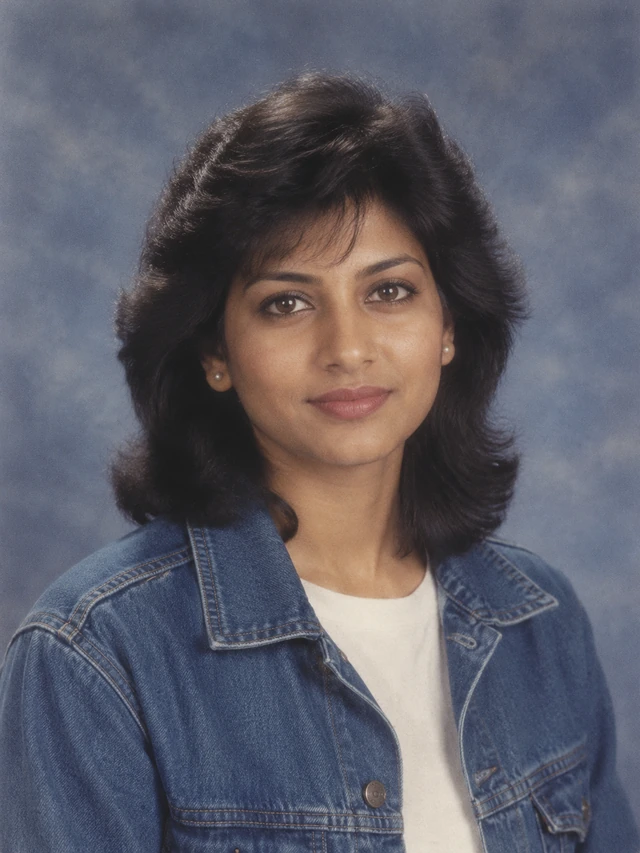
Yearbook studio
A blue-gray backdrop, denim jacket and soft frontal light give this portrait its school-photo character. Use a clear chest-up source with both eyes visible. The prompt asks for subtle feathered hair while retaining its original length and color; remove that instruction if keeping your exact hairstyle matters more.
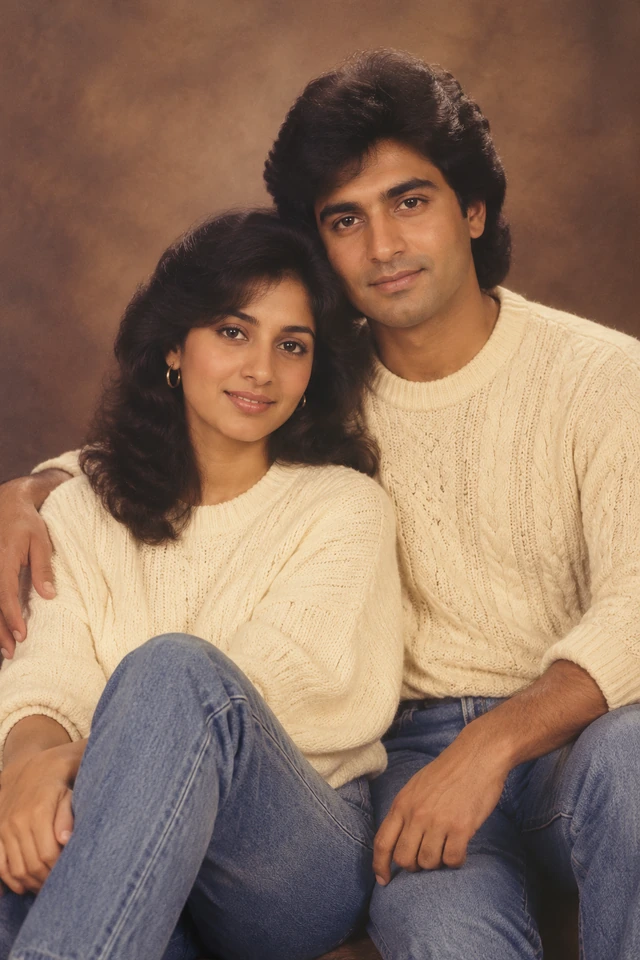
Family-album sitting
Cream knitwear, warm brown muslin and faded color suit an existing couple or family photograph. Every person needs enough visible facial detail. Upload one group picture rather than separate selfies: this workflow accepts one source image and does not combine individual photos into a new family portrait.
Make your 80s portrait in three steps
- 01
Choose a clear source
Upload a JPG, PNG or WebP up to 15 MiB. Prefer an evenly lit photo without sunglasses, heavy filters or a very small face. A solo selfie suits the yearbook look; an existing group photo suits the family style. Keep the original file so you can compare it with the edit.
- 02
Adjust the scene
The yearbook scene is already selected. Expand Edit full prompt to choose which studio details to keep. Browse the other retro templates or edit the wording directly. Specify one backdrop, one outfit and the amount of grain you want. Choose your output framing, then check that the prompt fits your source photo rather than requesting a conflicting pose.
- 03
Generate, inspect, download
Sign in, check the displayed credit cost and confirm your right to use the photo. Generate the image, then compare eyes, facial proportions, hands and clothing with the original. Download a successful result from the result panel or your history. Change one instruction at a time if you want another attempt.
Write an 80s photo prompt that leaves less to guess
Name the photographic setup instead of asking only for a “vintage filter.” The decade alone leaves clothing, lighting and age open to interpretation. Describe the styling you want, then state what must stay consistent. Avoid asking the model to make someone younger unless that change is actually your goal.
The prompt stays editable after selecting a template. For a gentler retro effect, keep your clothes and hair and request only faded color, lighting and a backdrop change. For an album look, retain every existing person and their arrangement.
Edit this photo into a 1980s studio portrait. Keep my recognizable face, skin tone and apparent age. Use a denim jacket, blue-gray muslin backdrop, soft frontal light and subtle film grain. Keep my original expression and natural skin texture. No text or watermark.
When the retro edit misses the mark
- The face looks too different
- Use a sharper source and reduce the number of requested changes. Keep the original expression, age and hairstyle; change the background first. The preservation instructions guide the edit but cannot guarantee an exact match.
- The portrait looks artificially old
- Separate the age of the photograph from the age of the person. Ask for faded film color and fine grain, while explicitly preserving apparent age. Avoid words such as “aged face,” heavy scratches or extreme blur.
- The family arrangement changes
- Choose a source where faces are separate and visible. Ask to retain the number of people, relative heights and original pose. Do not ask the model to invent a missing relative or repair a face hidden behind someone else.
Choose a result you can actually use
A profile photo with a retro mood
A chest-up yearbook composition keeps the face readable at avatar size. Leave a little room around the hair so a circular crop does not cut it off. Inspect the small thumbnail as well as the full image before choosing a favorite.
An album-inspired social post
Use the family style for a photograph you already share together. Pair the generated edit with the original if you want to show the transformation, and label it as an AI edit. This tool creates one image at a time; arrange a carousel in your social app.
What to expect before generating
View credit packsThe current image workflow costs 10 credits per generation; the tool displays your account balance and server cost before submission. Selecting a template, editing a prompt and choosing a source do not spend credits. Credit packs are available on the pricing page. This is a photo-editing workflow with an uploaded image, rather than a text-only portrait generator.
AI may reinterpret facial details, fabric or background objects. Compare each result before sharing, especially in group photos. The illustrations on this page are generated style concepts, not paired tests of your source or guarantees of face fidelity. Photo processing uses an external AI service. Upload only pictures you have permission to use, and avoid treating an AI edit as an authentic historical photograph.
80s photo questions
What is the 80s AI photo trend?
It reimagines a modern photo as a 1980s portrait using studio backdrops, period clothing, fuller hair and analog color. Choose yearbook, family-album or retro-film styling according to your source.
Will the 80s AI photo generator keep my face?
The presets request recognizable features, skin tone and apparent age, without guaranteeing an exact match. Use a sharp, unobstructed face and inspect the result. If likeness drifts, simplify outfit and hair changes.
Can I create an 80s family photo from separate selfies?
This page accepts one source image. Use an existing couple or family photo with all intended people already present. It does not offer a multi-photo face merge. The family preset also works for a solo portrait and asks the model not to invent a partner or children.
Is this an old-photo restoration tool?
This page restyles photos; it cannot recover missing historical detail. Use a modern selfie for an invented retro portrait. For a damaged family archive, keep the original and compare any restoration carefully.
Can I use my own 1980s photo prompt?
Yes. Edit the preset or choose the custom option. Request clothing, lighting or film color within the prompt limit. One specific scene and a short preservation list are easier to evaluate than conflicting aesthetics.
How do I save the result?
Once a generation succeeds, use Download in the result panel or open it from your history. Save a local copy before leaving if you need it for a project. The tool downloads the generated image; it does not automatically publish a post, build a carousel or send anything to your social accounts.
Give your photo an album-era setting
Start with the yearbook preset, keep the changes specific, and review the face before you share.