
Diwali AI photo generator
Create a festive photo from your own portrait. Choose diya light, a balcony at dusk or a rangoli courtyard, then adjust the prompt before generating.
Vikas Editor studio
AI-generated style concepts, not before-and-after tests of this editor.
Checking studio availability…
Your latest 20 edits, including unfinished requests. Sign in to view them.
Build the celebration around your photo
A Diwali portrait should balance warm lamps, natural skin and believable clothing. This Diwali AI photo generator offers three focused scenes with editable instructions. Use your picture for an individual portrait or an existing group image for a shared celebration. Choose a quiet home setting and remove details that do not reflect how you celebrate.
AI-generated style concepts, not before-and-after tests of this editor.
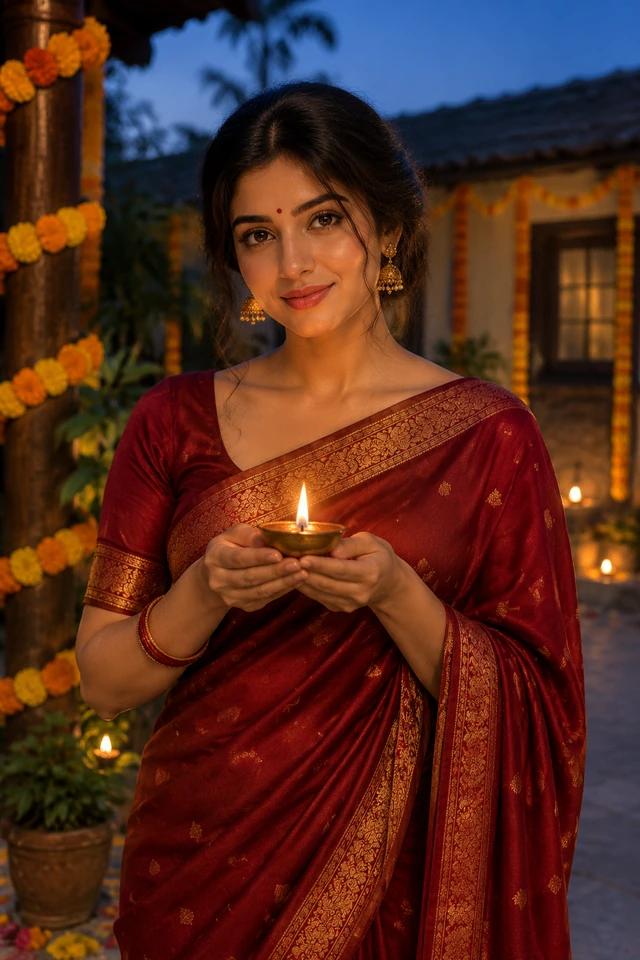
A single diya
A small lamp at chest height makes the light source easy to understand. Warm glow meets gentle ambient fill so the face does not disappear into shadow. Keep the flame away from the face and avoid requesting several complicated hand gestures in the same portrait.
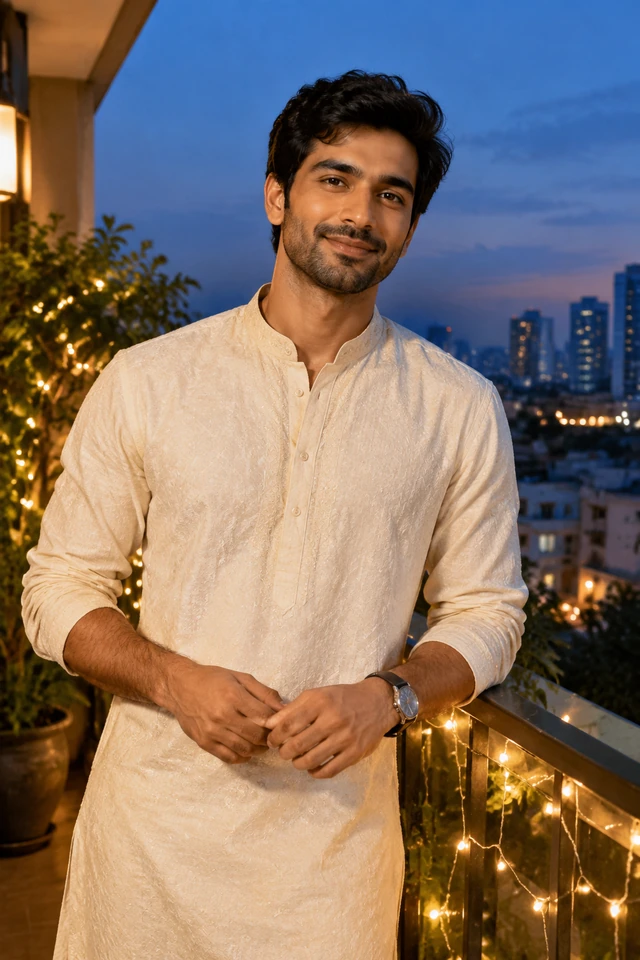
Balcony at blue hour
Choose fairy lights and a blue evening sky for a festive portrait without holding a prop. The balcony preset is a useful start when your source is a standing portrait. Edit the outfit color to suit you, while keeping the railing and background architecture simple.
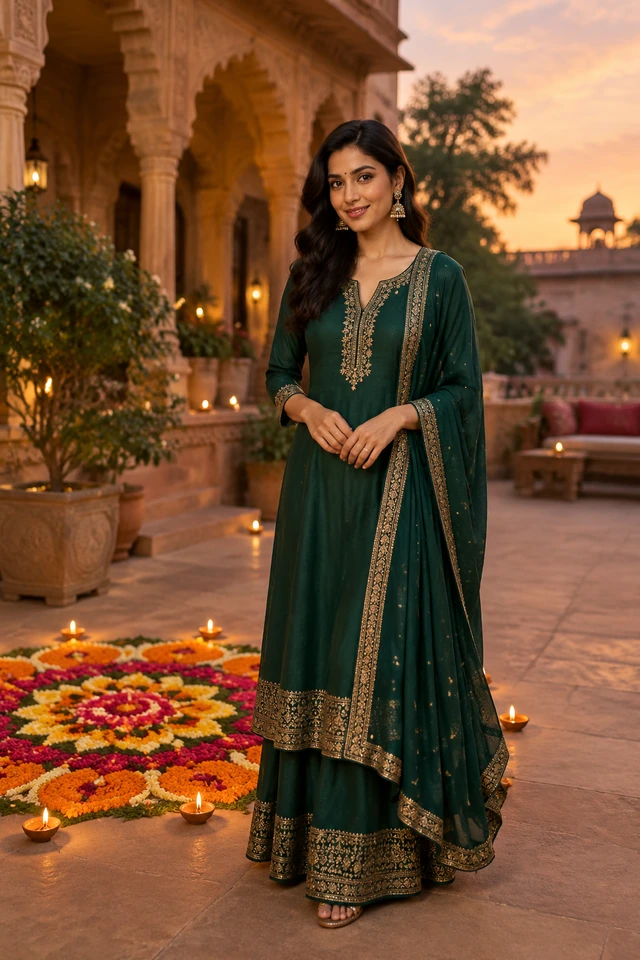
Floral rangoli courtyard
A rangoli pattern belongs on the ground, with a few diyas around it. This scene suits a wider source that includes some surroundings. With a close-up photo, retain a waist-up crop and show only part of the pattern rather than demanding a difficult new full-body pose.
Create your festive portrait
- 01
Upload your photo
Upload one JPG, PNG or WebP up to 15 MiB. Choose visible eyes, clear facial detail and unfiltered lighting. For a couple or family scene, use a photo with everyone already together. Ask permission before uploading someone else’s picture.
- 02
Choose and personalize
Use Edit full prompt to tailor the preloaded diya scene. Select a balcony or rangoli template for a different setting, then edit clothing, colors and decoration. Keep the important face-preservation instruction. Choose framing that leaves room for the lamp or ground pattern you want to include.
- 03
Generate and review
Sign in, check the credit cost and balance, then confirm your right to use the source. After generation, inspect the face, fingers, flame and decorative details. Download a successful result. If something is wrong, simplify the scene and change one part of the prompt for the next attempt.
Make the Diwali photo prompt fit your celebration
Start with the subject, setting and light. “Diwali portrait” provides context, but does not specify clothing or composition. Choose a few visual details. Leave greetings and logos out if you want a clean photograph.
For a couple photo, preserve each person and the original arrangement. For a lamp-free version, request background fairy lights. Specify a saree, kurta or another suitable outfit without assuming gender or changing age.
Edit this photo into a Diwali evening portrait. Preserve the existing face, skin tone and apparent age. Use an ivory festive outfit, a small diya held at chest height, warm lamp glow and soft ambient face lighting. Add restrained marigolds behind the subject. No extra people, fireworks, text or watermark.
Small changes that solve common problems
- The face is orange or too dark
- Request balanced warm light with soft ambient fill and natural skin tone. A diya can contribute glow without being the only light source. Remove phrases asking for intense firelight or deep facial shadow.
- Hands or the lamp look wrong
- Ask for one small lamp and a simple grip. Keep the original hand position where possible, or choose the balcony scene without a handheld prop. Check the result at full size before sharing.
- The scene feels overcrowded
- Choose one main decoration: lamps, marigolds or rangoli. Remove fireworks, large crowds and competing light sources. A quieter background makes a personal portrait clearer and leaves more room for the face.
A portrait first, a greeting second
Personal and family sharing
Create an individual festive portrait or restyle an existing family picture. Check every face rather than accepting a convincing first impression. If you post it, make clear that the scene is AI generated. The tool creates a photo edit; it does not document an event that actually happened.
A clean starting image for a greeting
Download a portrait with room beside the subject, then add a greeting in your preferred design app. Keeping text separate gives you more control over spelling, language and layout. This page does not provide a dedicated greeting-card editor, print proof or automatic social publishing.
Credits, source photos and realistic expectations
View credit packsThe current photo generation costs 10 credits. Check the live cost and available balance in the tool before submitting; choosing a style and editing its prompt do not spend credits. Sign-in and sufficient credits are needed to generate. You can review credit packs on the pricing page without submitting a photo. Each request starts from one uploaded image.
These examples are AI style concepts rather than before-and-after tests of the production editor. An instruction to preserve the face can still produce changed details. A group photograph may be harder to edit consistently than a clear solo portrait. Photos are sent to an external AI service for processing, so use images you have permission to upload. Avoid including private documents or unrelated personal details in the background.
Diwali photo questions
Can I use a Diwali AI photo editing prompt here?
Yes. Rewrite a preset or use a custom prompt with your photo. You can generate here without copying instructions into another website. This page uses the Vikas Editor workflow; it is not an official Gemini tool.
Can I create a couple or family Diwali portrait?
Use one photo containing everyone, with each face visible. Request individual features and the original arrangement. This workflow does not combine separate selfies or reconstruct hidden, blurred or tiny faces.
Will the tool keep my skin tone and face?
The templates request both, plus apparent age and natural proportions. Results still vary. Compare the output with your source. A clear photo and fewer changes make problems easier to spot; exact likeness is not guaranteed.
Can I make a diya photo without changing my clothes?
Yes. Replace the clothing instruction with “keep the original outfit.” Describe only the lamp, background and light. Preserve your pose too if needed. For awkward hands, put the lamps in the background.
Does the Diwali AI photo generator add Happy Diwali text?
The default prompts request no text, logo or watermark. Add a greeting after downloading for precise typography. This page has no text-layout tool and does not guarantee correctly rendered words within generated images.
Can I download the photo on my phone?
Yes. Open the successful result and use Download, or find it in your signed-in history. Your browser handles saving the image, so the final location depends on your phone and browser settings. Keep your original photo separately and inspect the downloaded result before sharing it.
Start with one light, one clear portrait
Choose the diya preset or switch to the balcony scene. Make the details yours before generating.