
AI Christmas Photo Generator
Make a holiday portrait from your own photograph. Choose a tree, studio or pajama setting. For a family image, upload one photo that already includes everyone.
Vikas Editor studio
AI-generated style concepts, not before-and-after tests of this editor.
Checking studio availability…
Your latest 20 edits, including unfinished requests. Sign in to view them.
A holiday photograph built around the people you have
The AI Christmas photo generator restyles one uploaded image with a seasonal outfit, setting and lighting. Use a solo portrait, a couple photo or an existing family photograph. The editor works from the people in that image; it does not assemble relatives from separate selfies. Choose a setting that suits your source before adjusting the prompt.
AI-generated style concepts, not before-and-after tests of this editor.
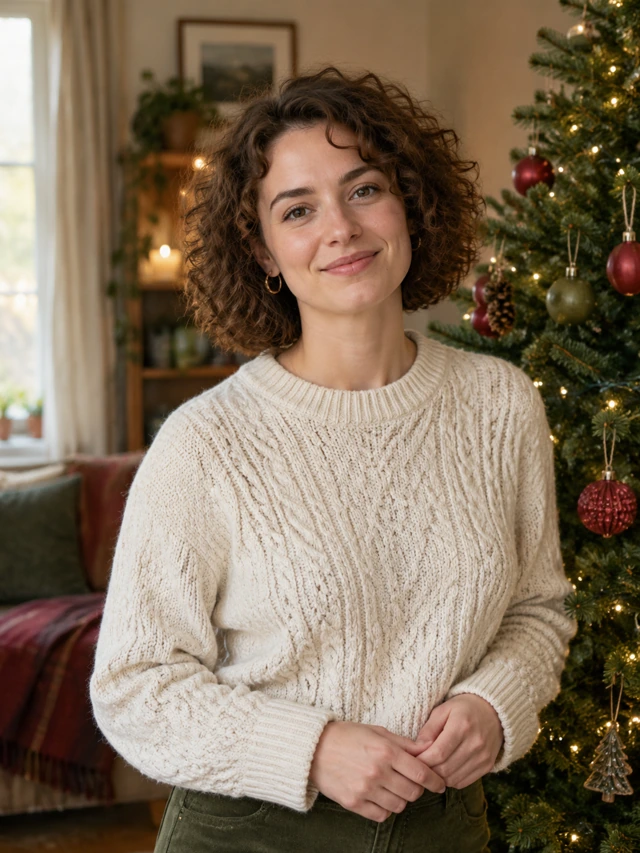
Warm lights by the tree
A modest evergreen tree, cream knitwear and soft window fill make a relaxed home portrait. Keep small lights behind the people so the face remains clear. This look suits a profile photo or a casual holiday message. Ask for neutral skin tones if the room becomes too orange.
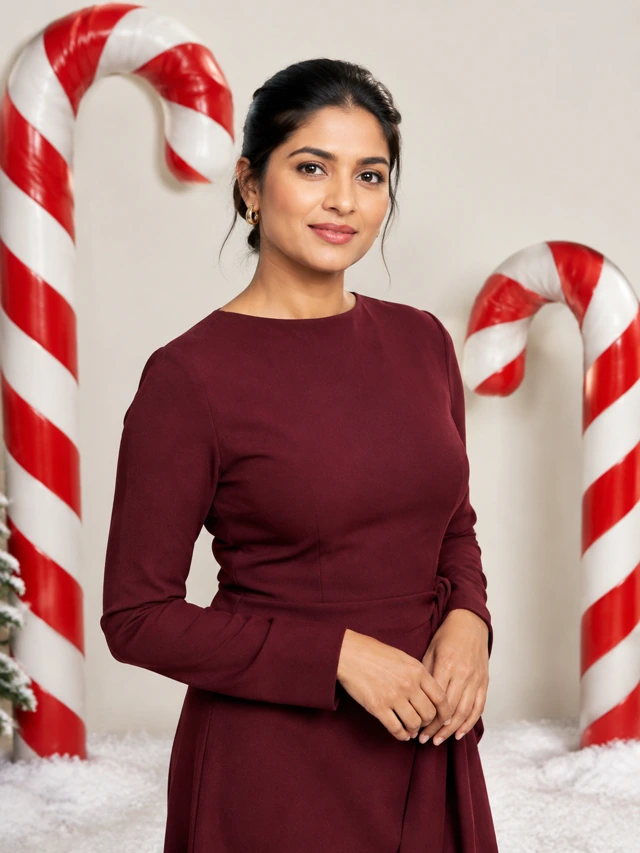
A candy-cane studio set
Burgundy clothing and red-and-white props give the portrait a more deliberate seasonal composition. The candy canes stay behind the person, with a plain studio background and controlled light. Try it when you want a festive image with clear visual structure. Avoid adding several unrelated characters or props; a small set leaves enough room for the face and outfit.
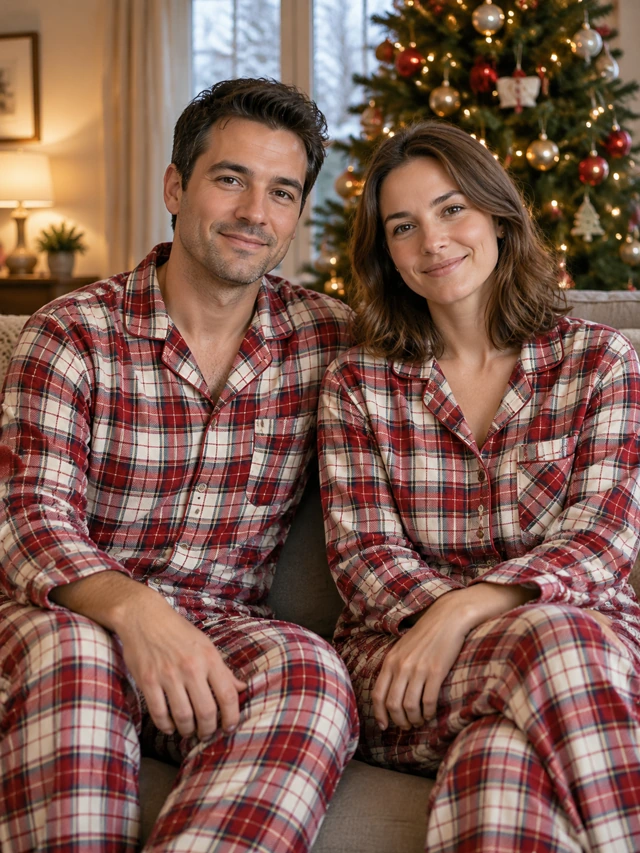
Matching pajamas, familiar faces
Start with a photograph of the couple or family together. The recipe asks for coordinated plaid pajamas, a sofa and a tree in the background. Keep the original arrangement and distinguish every person in the prompt when needed. A solo source produces a solo holiday portrait. Matching clothes are a styling request, not a way to invent absent children or partners.
Make a Christmas photo in three steps
- 01
Pick the right holiday source
Use a JPG, PNG or WebP no larger than 15 MiB. For several people, choose a photograph where every face is visible and reasonably well lit. Avoid a collage, screenshots of separate portraits and very small faces. Confirm that you have permission from everyone pictured.
- 02
Plan one scene and one outfit
Select a look and expand Edit full prompt. Decide whether to change the clothes, setting or both. Keep one clear location and describe the light falling on faces, rather than only the decorations. Choose the output framing and leave space if you intend to add a greeting in another application after download.
- 03
Review the finished photograph
Sign in, confirm permission and check the 10-credit generation cost. While the task processes, wait for its status to settle before starting another. Inspect each face and hand in the completed image. Download the result, then add names, dates or a greeting with your preferred layout editor. A revised generation uses another 10 credits.
A Christmas portrait prompt that stays manageable
A useful holiday prompt sets a small scene and protects the parts of the source you care about. Tell the editor whether everyone should keep their position and whether the outfits should change. Avoid asking for a new room, new pose, new expression and several extra characters together.
Remove the pajama instruction for a dressed-up portrait, or choose a simpler background when the family fills most of the frame. Request an image without lettering if you plan to typeset your own holiday message.
Keep all the people and their recognizable faces from this photograph. Retain their original arrangement. Dress them in understated red plaid pajamas on a sofa beside an evergreen tree. Put small warm lights in the background and soft window light on faces. Keep hands natural and leave a little clear space above the group.
Keep the holiday scene believable
- Lights make skin look orange
- Keep the tree lights warm but request neutral fill on faces. Reduce the number of glowing objects near the subject. Start from a source with usable facial detail instead of trying to rescue a dark party photograph.
- Someone in the group changes
- Use an image with fewer occlusions and tell the editor to keep the original arrangement. Compare people individually. Group edits can still alter likeness; if one face is wrong, the image needs revision even when the decorations look convincing.
- The room feels crowded
- Keep the tree and one supporting prop. Remove oversized gifts, signs and extra background figures from the instruction. For a close-up source, choose a close-up holiday portrait instead of requesting an entirely new full-body scene.
What to do with your holiday image
A photo for a holiday message
Create a festive image to place in an email, chat or card layout. The tool generates the photograph, not a finished printed card. Add accurate names, greetings and print specifications in a separate editor; check the downloaded file before placing a print order.
A seasonal portrait for your profile
Keep the framing close enough that your face still reads at small size. For a coordinated household set, treat each generation as an individual edit rather than expecting identical results across requests.
Credits, uploads and output limits
View credit packsSelecting a scene, reading a prompt and preparing the upload do not spend credits. Generation requires 10 credits per image. You can inspect the current balance and available packs before deciding whether to submit.
This page accepts one existing photograph and returns one generated image per request. It does not merge separate family photos, produce a guaranteed print layout or automatically publish a card. Previews are illustrative concepts. Personal uploads are processed by the service and generation provider; consult the privacy policy before sharing sensitive photos.
Christmas photo questions
Can I make a family Christmas photo?
Yes, from a single photograph that already contains the family. Keep every face visible. The tool cannot bring together people from separate uploaded selfies.
Can I keep our original clothes?
Yes. Remove the clothing change from the full prompt and ask for only the background and lighting to change. Check that no remaining instruction requests pajamas or knitwear.
Does the editor add Christmas greetings?
This workflow focuses on the image. Add a greeting after downloading with a text or card editor so spelling, placement and typography remain under your control.
Can I generate a Christmas video here?
This theme page is for still images. The homepage has a separate image-to-video workflow with its own credit cost. A holiday portrait does not include a video automatically.
What happens when I want another version?
Change a specific part of the prompt, check the cost and generate again. Each new image request uses credits. Keep a downloaded copy of the version you prefer.
Are the examples photographs of customers?
No. They are original generated illustrations of the intended settings. They show a creative direction, rather than proving how a particular customer upload will be transformed.
Prepare your holiday portrait
Choose a setting, use a clear source and make room for the people who matter in the photograph.