
AI Saree Photo Generator
Turn your own portrait into a saree photograph. Choose a pink or retro look, adjust the clothing and light, and generate from one uploaded photo.
Vikas Editor studio
AI-generated style concepts, not before-and-after tests of this editor.
Checking studio availability…
Your latest 20 edits, including unfinished requests. Sign in to view them.
Choose the saree portrait you want to make
An AI saree photo generator changes the clothing, setting and photographic treatment of an uploaded portrait through written instructions. Vikas Editor starts with your photograph and an editable recipe. Pink afternoon light and a muted teal film portrait offer different moods; the classic burgundy template remains in the selector. These are creative photo edits, not a fitting service that shows how a particular garment will look or drape on your body.
AI-generated style concepts, not before-and-after tests of this editor.
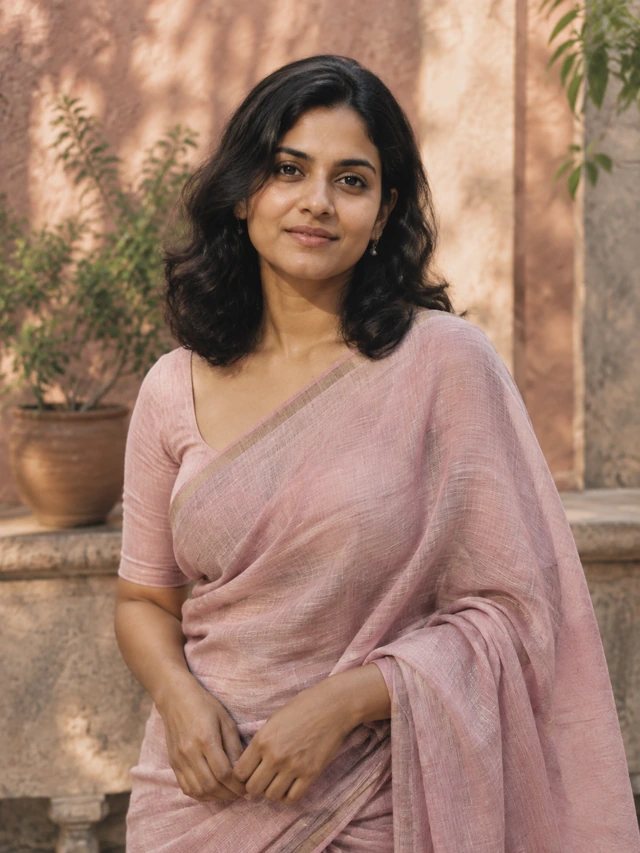
Pink saree, late-afternoon light
A pale rose saree and a quiet courtyard keep attention on the person. This direction suits a relaxed profile portrait, with modest earrings and a narrow fabric border. Ask for softer shade if strong sunlight exaggerates facial shadows. Describe the textile clearly rather than adding several unrelated patterns, necklaces and flowers. A simple outfit gives the edit a more coherent starting point.
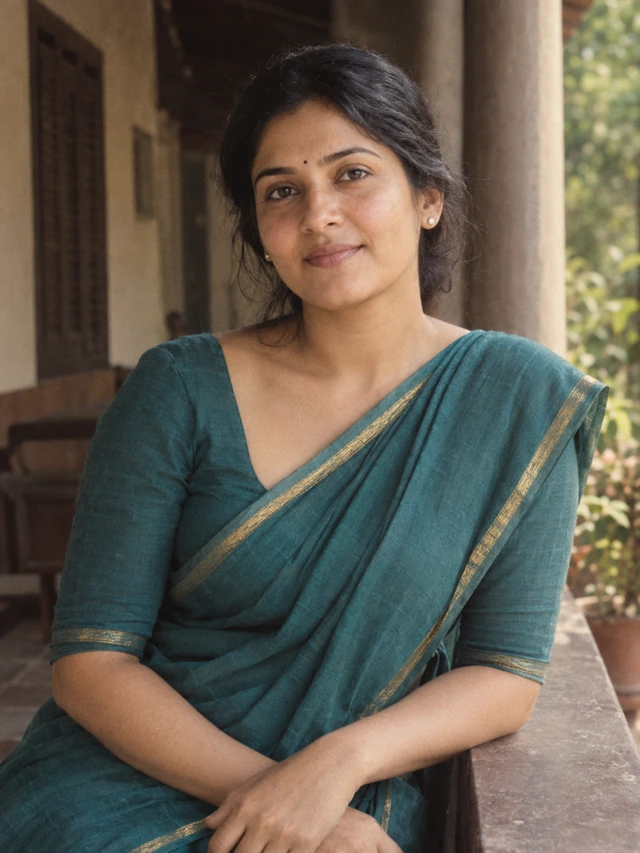
A restrained 90s film portrait
Muted teal, shaded veranda light and fine grain suggest a familiar film photograph without requesting a celebrity face. Try this for a personal album or a softly nostalgic post. Keep your original hair length and expression if recognition matters more than a full makeover. The period feel should come from lighting and color; it does not require changing your apparent age.
How to make a saree portrait online
- 01
Start with an unobstructed face
Upload one JPG, PNG or WebP up to 15 MiB. An evenly lit chest-up or waist-up photograph is easier to assess than a heavily filtered selfie. Leave some room around shoulders so the clothing has space. Avoid sunglasses, hands across the face and screenshots containing several unrelated portraits. You need permission to edit everyone shown in the source.
- 02
Set the fabric, crop and light
Select a saree look, then open Edit full prompt. Keep one main color, one setting and one lighting direction. You can write instructions in your language. Choose square, portrait or vertical output framing before generating; this controls the requested composition, rather than cropping an already finished image.
- 03
Generate, compare and download
Sign in, confirm photo permission and check the displayed credit cost. Each image generation uses 10 credits. Wait for the task to finish, then compare the face, skin tone, fabric folds and hands with your original. Download a result you like. Another generation is a separate request, so make a focused prompt correction instead of repeatedly submitting the same broad description.
Write a saree photo prompt around one change
The useful part of a saree photo prompt is the relationship between what stays and what changes. Name the person’s existing features first, then describe the outfit and scene.
Use this as an editable starting point, not a promise of identical facial reproduction. For a quieter result, keep the clothing from your source and request only the background and light. For stronger retro color, ask for a little faded warmth before adding more grain.
Keep my face, skin tone, hair length and relaxed expression. Change my outfit to a dusty rose saree with a thin woven border. Place me beside a plain courtyard wall in soft afternoon shade. Use natural skin texture, simple earrings and a waist-up crop. Leave the image free of lettering.
When a saree edit needs a correction
- The face looks unfamiliar
- Reduce the number of requested changes and use a clearer source. Remove instructions for a different age, facial shape or expression. Compare small features such as the eyes and hairline before deciding whether to keep the image.
- Jewelry or fabric becomes tangled
- Specify a narrow border and one small pair of earrings. Keep hands in their original position and avoid describing multiple drapes at once. Intricate embroidery and a new hand pose create more details to inspect.
- The image feels overly polished
- Request visible skin texture, restrained retouching and soft daylight. Remove conflicting glamour language. If your source already has heavy smoothing, try a less processed photograph rather than asking the editor to reconstruct missing detail.
Where this look fits
A personal traditional portrait
Explore an outfit and color palette for your own social profile or a message to friends. The result is a fictional styled image, so use an actual photograph when documenting an event, an outfit you wore or a garment you sell.
A coordinated album direction
Use a similar color and lighting description for separate portraits you plan to arrange later. Each request still creates one image and may vary in face, fabric and background. The editor does not automatically make a matched album or combine separate people into one photograph.
Before you upload a portrait
View credit packsBrowsing looks and changing instructions do not use generation credits. Creating an image requires an account and 10 credits; current packs appear on the pricing page. The prompt can contain up to 1,000 characters.
A source photograph is required. Vikas Editor is an independent photo editor, not an official Gemini product or a saree retailer. Images are processed through the service and its generation provider. Review the privacy policy before uploading personal photos. The displayed previews are generated illustrations; your source and wording determine a different result.
Saree photo questions
Can I choose another saree color?
Yes. Edit the color and textile details in the full prompt. Mention whether the border should remain subtle, and remove the old color so the instructions stay consistent.
Will the edit keep my face exactly?
The recipes ask the model to preserve recognizable features, but exact likeness is not guaranteed. Check the output against your photograph, especially after large clothing or scene changes.
Do I need to copy a Gemini prompt?
No. Choose a look here and revise the instruction in the editor. You do not need a separate Gemini account or a copied social-media prompt to use this workflow.
Can I use a group photograph?
One existing group photo can be uploaded, but the saree looks are best approached as individual portraits. Specify clothing for each existing person if needed. Separate selfies cannot be merged in this tool.
Is this a free saree photo generator?
Browsing is free; image generation costs 10 credits per request. Check the balance and the price shown beside the generation action before you start.
What should I check before sharing?
Look at facial likeness, hands, earrings and fabric edges at a useful viewing size. Download the file first and use your usual editor for any text or final layout.
Make a saree portrait with your own details
Choose the color and light, then keep the instruction focused on the photograph you have.