
AI Snow Photo Generator
Restyle your photograph for winter. Choose a snowy outdoor portrait or a warm indoor window scene, edit the prompt and generate one image from your source.
Vikas Editor studio
AI-generated style concepts, not before-and-after tests of this editor.
Checking studio availability…
Your latest 20 edits, including unfinished requests. Sign in to view them.
Choose where winter belongs in the photograph
The AI snow photo generator edits an uploaded photograph into a winter scene through a selected prompt. Snow can fall behind the subject outdoors, or stay beyond a window while the person remains warm inside. Vikas Editor offers both directions alongside the existing snowy-lane look. Clothing, lighting and surroundings are part of the edit, so this is more than placing a transparent snow overlay on the original pixels.
AI-generated style concepts, not before-and-after tests of this editor.
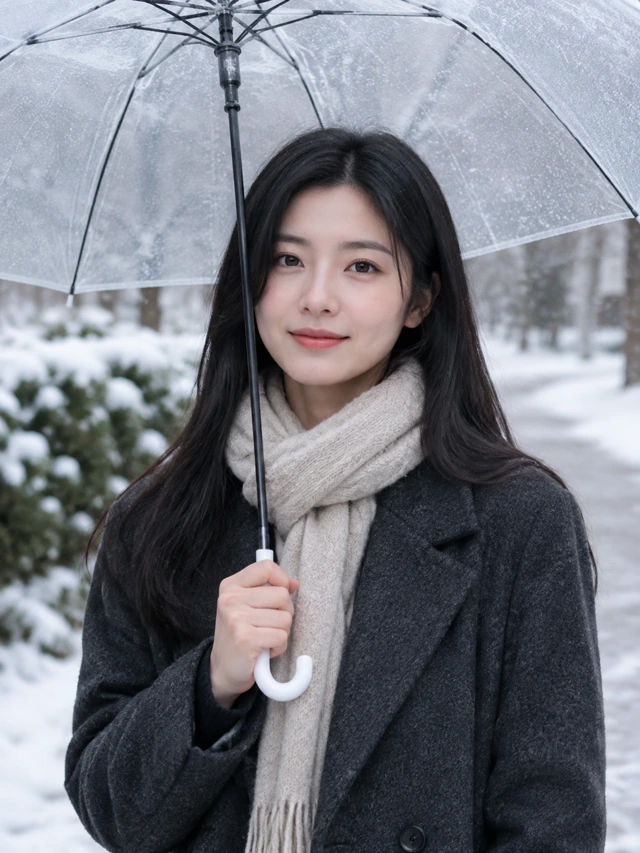
Under a transparent umbrella
A clear umbrella gives light snowfall a recognizable setting while leaving the face visible. The recipe uses a dark coat, a plain scarf and soft overcast light. Keep the rim above the hair and the handle in a plausible hand position. A waist-up source is a practical starting point; a tightly cropped face gives the umbrella and clothing less space to fit naturally.
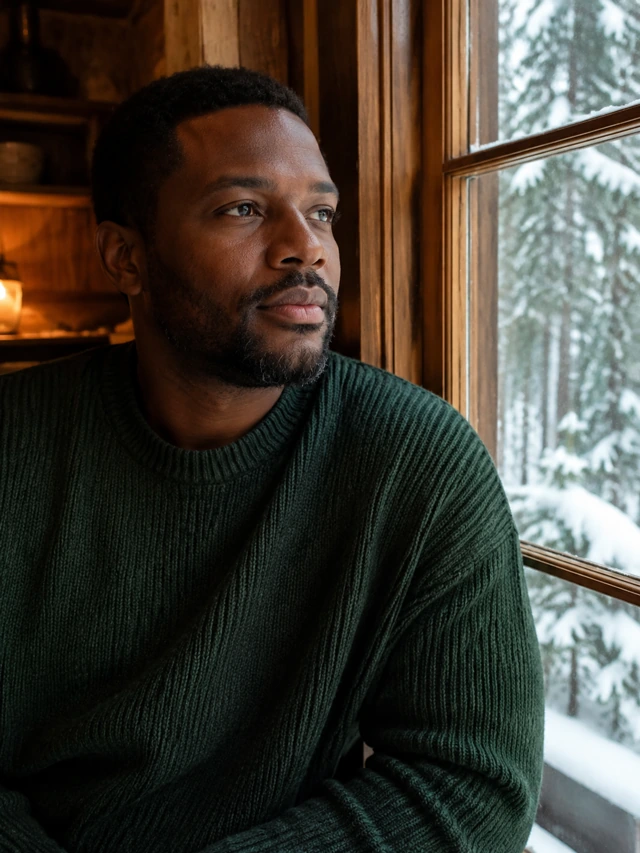
Warm indoors, snow outside
The window scene places a person inside a timber-framed room with snowy trees beyond the glass. Warm interior light and a dark knit create a quieter alternative to standing in falling snow. Keep the room dry in the prompt, and ask for the weather to remain outdoors. This direction suits a close portrait when adding a large umbrella would complicate the composition.
Make a winter portrait from one photo
- 01
Find a clear winter source
Upload one JPG, PNG or WebP up to 15 MiB. The source does not need to contain snow. A sharp face, visible shoulders and simple lighting give you details to compare after editing. Avoid choosing a photo with large objects blocking the head or hands if you want an umbrella. Confirm permission for everyone in the image.
- 02
Choose the weather and the room
Select umbrella, window or the existing snowy-lane template. Expand Edit full prompt to adjust the coat, scarf, snow amount and lighting. Make indoor and outdoor instructions consistent. Choose square, portrait or vertical framing for the composition you need, and keep the prompt within 1,000 characters.
- 03
Look beyond the snowfall
Sign in, check the displayed 10-credit cost and generate. Once the task finishes, compare the face and skin tone with your source before judging the scenery. Check umbrella ribs, window reflections and clothing edges. Download the chosen image. If you revise the weather or outfit, a further generation is a separate request and uses another 10 credits.
Write a winter prompt with a clear boundary
A snow photo prompt should say where flakes appear, what protects the face and how the light behaves. “More snow” alone can obscure eyes or place snow indoors.
For an outdoor version, replace the room with a quiet path and add a clear umbrella above the head. Keep fine snow mostly behind the face. If you only want a background change, explicitly retain the source clothes and pose rather than leaving the model to infer them.
Keep my recognizable face, skin tone and hairstyle. Place me indoors beside a timber window, wearing a plain dark green sweater. Show a quiet snowy garden beyond the glass. Balance soft warm interior light with cool daylight. Keep the room dry, the face clear and snow entirely outside. Use one chest-up composition without text.
Correct common winter-photo problems
- Snow hides the eyes or mouth
- Request light flakes behind the person and an unobstructed face. Reduce the weather intensity instead of asking for a blizzard. Use a source with clear eyes so you can inspect whether the correction actually helped.
- Skin turns blue or orange
- Describe neutral skin tone with balanced cool ambient light and soft fill. Keep the warmth for the room or background lamps. Strongly colored source lighting can carry into the edit, so try a more evenly lit original if needed.
- The umbrella or window looks wrong
- Simplify the scene and retain a natural pose. For an umbrella, inspect the handle, hand and ribs together. For a window, check straight frames and reflections. Choose the simpler indoor portrait if the source cannot comfortably support a new hand-held prop.
Where to use a snow portrait
A seasonal portrait without a trip
Try a snowy environment for a personal avatar or winter message. Treat it as a creative image rather than evidence of a visit to a real location.
A photograph for a winter layout
Generate one portrait to place in a story, greeting or personal collage you arrange elsewhere. The editor does not automatically produce a consistent three-panel snow story. If you make separate images, expect differences between requests and use your preferred layout tool for the final arrangement.
Winter editing limits and credits
View credit packsThe winter page creates one image from one photograph. It does not guarantee unchanged facial likeness, automatic three-frame consistency or a physically accurate weather simulation. The snow and clothing are generated parts of a restyled image.
Templates and prompts can be explored before spending credits. Image creation requires an account and 10 credits per generation. The preview gallery contains independently generated illustrations, not proof of an identical transformation for every upload. Your photograph is processed online through the service and its provider; consult the privacy policy before uploading personal material.
Snow photo questions
Can I add snow to a summer photograph?
Yes, you can request a winter setting from a non-winter source. For a believable result, describe suitable clothing and lighting too. Keep the face clear and inspect the scene after generation.
Can I keep my coat or original outfit?
Yes. Edit the full prompt to retain it and remove the replacement clothing instruction. A familiar outfit can help the image feel closer to your source.
Does it make the viral three-panel snow photo?
This workflow returns one generated image per request. It does not provide automatic consistent three-panel storytelling or an integrated collage editor.
Can the snowfall move?
This page generates still photographs. The homepage offers a separate image-to-video workflow. Motion requires its own request and credit cost, and is not included with the winter image.
Do I need a full-body source?
No. A chest-up image suits the window scene, while visible shoulders and a little space above the head help the umbrella look. Match your requested crop to the detail available in the source.
Why does my result differ from the preview?
The preview is an illustrative scene. Your face, source lighting, crop and edited wording all affect generation. Use the preview to choose a direction, then evaluate your own output.
Set the scene for your winter portrait
Choose indoors or outdoors first, then give the snow, light and clothing one clear direction.